
Internet Security Fundamentals - Online Edition
45 Device Encryption
Encrypting your device will protect your device if it is stolen or lost, as your data cannot be accessed without your login credentials. Also, anyone thinking of removing the hard drive or SSD from the computer and inserting it into an externa USB enclosure will also not work, as the data will not be accessible. If you have a business, then encrypting your devices is super important, as you do not have to report a lost or stolen computer to the Data Protection Authorities in your country (in the UK it’s the ICO) if your device is fully encrypted.
Nearly every modern smartphone, laptop and computer can encrypt all the data stored on it, including the entire operating system. In some cases, it’s the default setting or enforced automatically when you add a passcode or biometric (eg FaceID, TouchID) access. Encryption is basically locking the data unless you have the key, which can also be linked to your Apple, Google or Microsoft account, PIN, biometrics or password.
When things go wrong though, you can effectively be locked out of your own device. Normally, the key to unlock the data is stored and retrieved in a special area commonly known as the Trusted Platform Module or TPM which is either a standalone chip or part of the main processor. When for whatever reason the key is no longer available, whether due to corruption or damage, the device will not properly start as it cannot unlock the encrypted data.
When you first set up encryption, you are given a special recovery key, which needs to be kept somewhere safe. Unfortunately, this is harder than it sounds, as years can go by before there is ever a need for it. Remembering if you emailed it to yourself or wrote it down in an online doc can be difficult, which is why both Microsoft and Apple allow you to save the encryption key to you online account. Given that the Microsoft BitLocker recovery key is a 48-digit numerical password, and the Apple FileVault recovery key is a 24-character alphanumeric code, it’s quite easy to make a mistake when writing them down.
So, how often do things go wrong that require your encryption key? For most people, they will never need to manually enter their key due to problematic system or driver updates. Sometimes the TPM chip can fail due to long term damage from overheating, resulting in intermittent, but recurring issues. Upgrading or replacing major hardware components can also trigger the computer to request the recovery key, as part of an anti-theft protection in Microsoft Windows.
If you don’t know where your encryption recovery key is stored or what it is, don’t panic, so long as the computer is working and you can log into it and have administrator privileges or the credentials of an account that does. For a Windows computer, search for BitLocker in Settings or navigate to Control Panel\All Control Panel Items\BitLocker Drive Encryption, here you can select Backup your recovery key to download the information to a removable drive or print it to a PDF file. Please note, Windows will not let you initially store the encryption key on the same device that is encrypted, though you can print it as PDF.
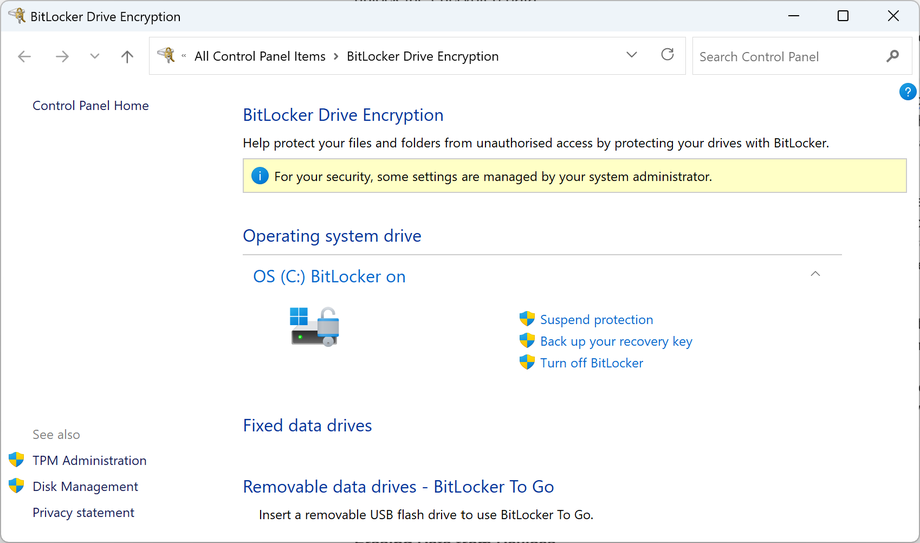
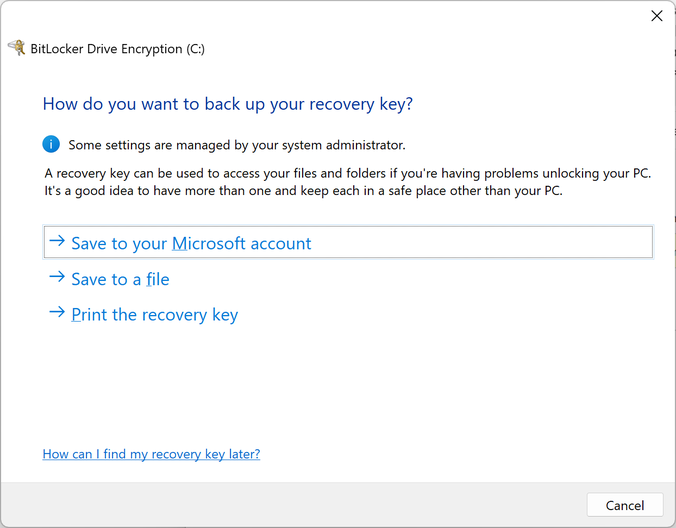
For a macOS computer you can always generate a new key if you have administrator privileges. Simply by deactivating the encryption protection known as FileVault and reactivating it, will generate a new key. To do this, go to System Settings (or System Preferences) and select Privacy & Security. Scroll down and click on FileVault. You can select and copy the encryption recovery key from the dialog box and paste it into an email or document to avoid typos.
External USB storage can also be encrypted, which is especially useful if you are using them for backing up your files. Some USB memory sticks and portable drives have encryption built-in and even have buttons for you to enter a 7-15 digit PIN code to authenticate after which you can use it as a normal USB flash drive. These are considerably more expensive than a standard drive but are the gold standard for protecting your data. You can also use software-based encryption, which is either built into your operating system or via a third-party application like VeraCrypt.
For more information on Microsoft BitLocker encryption, see: https://bit.ly/BitLocker-Info or
https://support.microsoft.com/en-gb/windows/bitlocker-overview-44c0c61c-989d-4a69-8822-b95cd49b1bbf
For more information on Encrypt and protect a storage device with a password in Disk Utility on Mac, see https://bit.ly/macOS-Disk-Utility or https://support.apple.com/en-gb/guide/disk-utility/dskutl35612/mac
VeraCrypt is a free open-source disk encryption software for Windows, Mac OSX and Linux.
For more information, see: https://veracrypt.io/en/Home.html

Index or next chapter In Conclusion
Please support this website
